Ambient Screen
Living-room display for an LG webOS TV, controlled from a Mac on the same Wi-Fi.
Case study

Work / Clatter
A Mac menu-bar app that plays mechanical keyboard sounds for everything you type. Pick a switch, set the volume, and Clatter clicks along in every app, without ever storing what you type.
A listener, a bank of recorded sounds and a few rules about when to stay quiet.
A listen-only keyboard tap reads which key was pressed, just enough to tell Space, Return and Backspace from the rest. It never changes or blocks a keystroke.
Letter keys play one of five recorded takes, picked at random and never the same one twice in a row. Space, Return and Backspace get their own sounds where the recording has them.
Twelve audio players share the work, so fast typing can overlap. Playback runs on the listener's own thread, so a busy app cannot delay a click.
Before every click, Clatter checks the rules: sounds on, the right output, the app in front not muted, and no call in progress.
Scope: Apple silicon Macs on macOS 14 or newer. While another app holds macOS Secure Input, such as a password field, macOS hides typing from every app, so Clatter goes quiet and says which app is responsible.
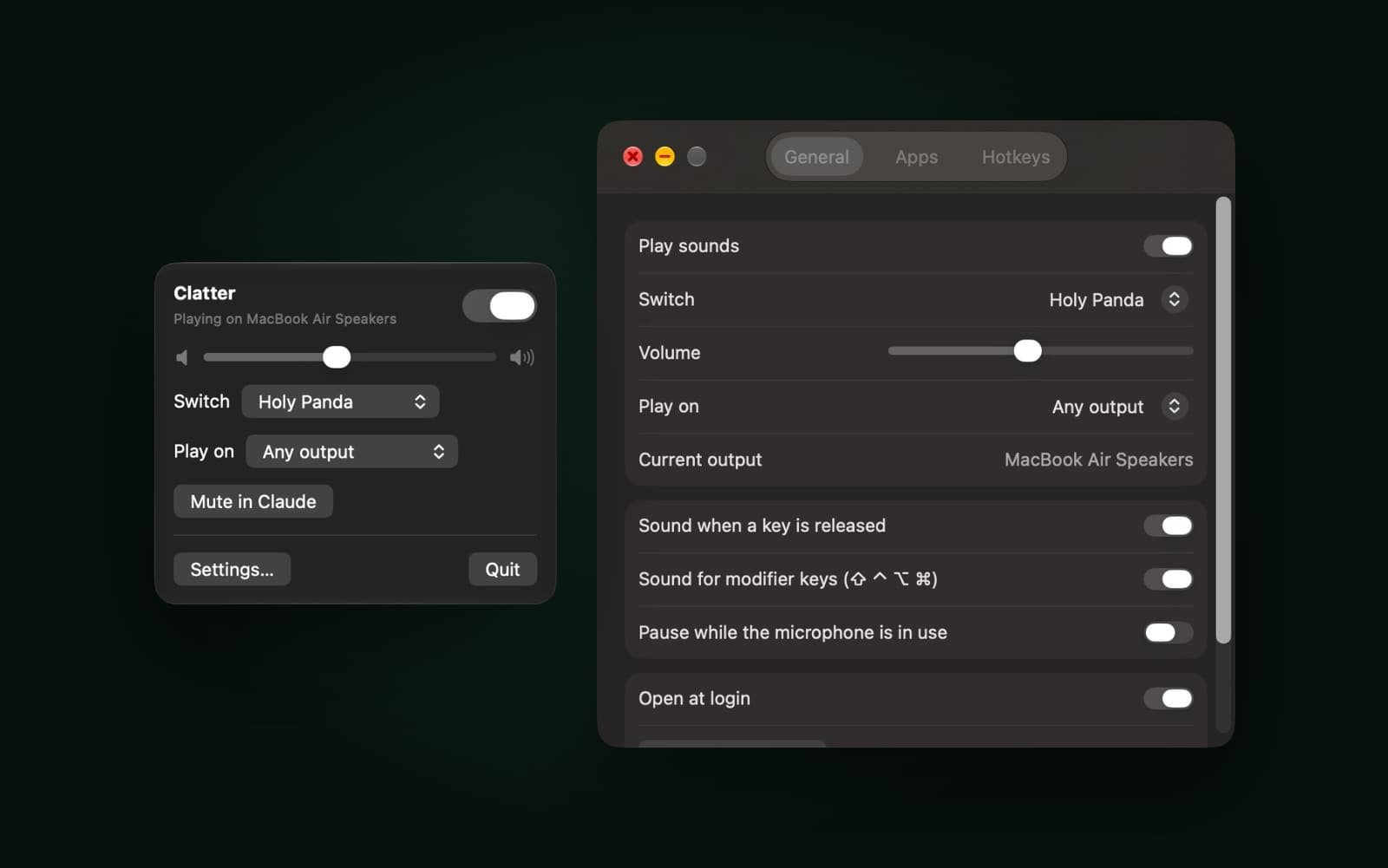
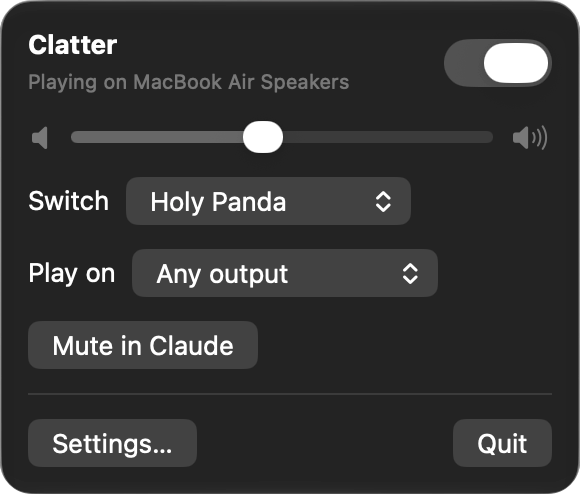
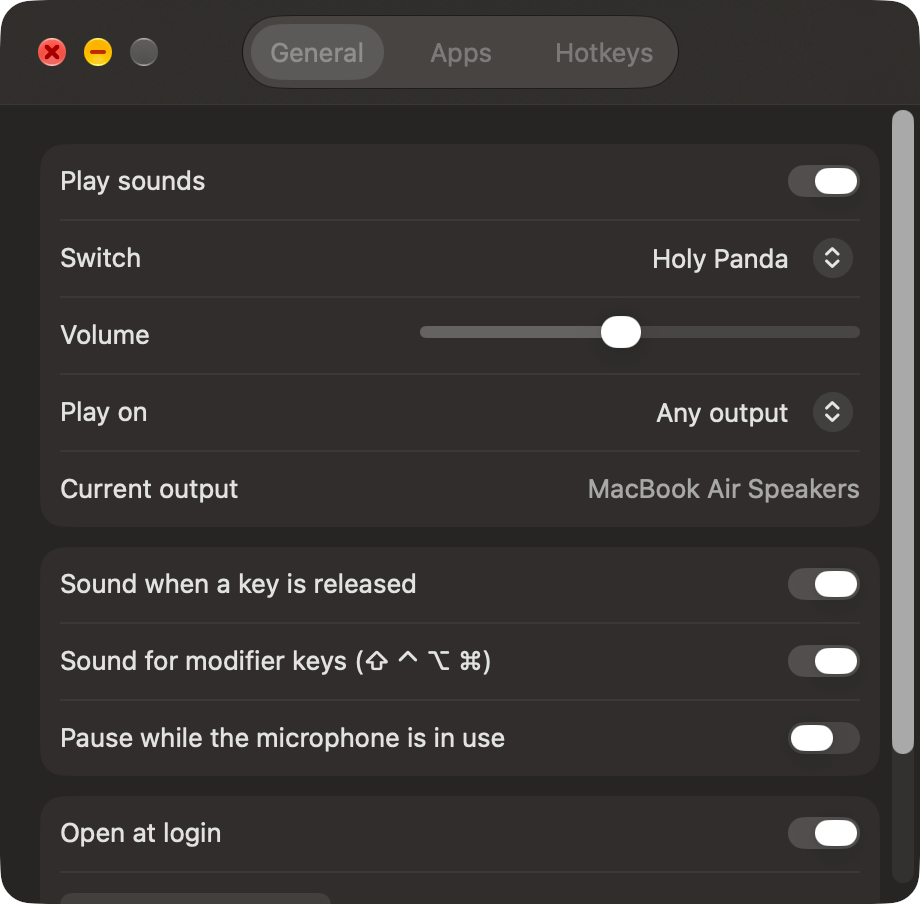
A small menu for the things you change often, and a settings window for the rest.
The small decisions that separate a sound effect from a keyboard.
Alpaca, Black Ink, Blue Alps, Box Navy, Buckling Spring, Cream, Holy Panda, MX Black, MX Blue, MX Brown, Red Ink, Topre and Turquoise. Every switch is levelled to a similar volume, and the louder Space and Return keys are turned down rather than clipped.
Recordings from the open-source kbsim and keyBeats projects (MIT)
A press and a release each get a sound, a held key repeats silently like a real switch, and modifier keys can click too. Each of those can be switched off. The volume slider is shaped to match how loudness is perceived.
Press, release and modifier sounds are each optional
Any output, headphones only or speakers only. Clatter follows the default output, recognises headphones by name, Bluetooth connection or headphone jack, and restarts its audio when you plug something in.
Core Audio and AVAudioEngine
By default it pauses while any app is recording from a microphone, so it stays out of your calls. A per-app list keeps chosen apps silent, and the status line always says why: muted in an app, silent on an output, or paused while the microphone is in use.
Pause during calls is on by default
Control, Option and Command with K turns sounds on or off, with the up and down arrows changes the volume, and with M mutes or unmutes the app in front. All four can be rebound. A shortcut needs ⌘, ⌥ or ⌃, and Clatter says when one is already taken.
Registered through Carbon, so no extra permission
An app that hears your keyboard has to be honest about what it does with it.
Clatter needs the macOS Input Monitoring permission and uses it only to pick a sound. What you type is never stored, logged or sent. Its own diagnostics note that a kind of key arrived, never which key, and the app contains no network code at all.
Listen-only event tap, Apple frameworks only
When an app holds Secure Input, macOS hides typing from every other app, and hardware-level listening gets nothing either. Instead of failing silently, Clatter finds the app responsible and shows "Typing blocked by" that app, with the fix.
Typically a password field, or a browser that left it on
Setup ends with a typing check: the next key you press has to reach Clatter. That shows the listener is really receiving keys, not just that the permission is switched on.
"You should hear a click with each key."
macOS gives no signal when the permission changes, so Clatter re-checks every two seconds. A Relaunch button covers the cases where macOS only honours a new grant after a restart.
Setup guide built into the app
Swift and SwiftUI with Apple's own frameworks and no third-party libraries. Settings saved by an older version still load, with new options at their defaults. A test loads every switch, checks that each key type decodes to usable audio with no long silence at the start, and plays a click per switch.
Swift, SwiftUI, AppKit, Core Audio
Other products from the same studio.
Living-room display for an LG webOS TV, controlled from a Mac on the same Wi-Fi.
Case studyLocal macOS scanner for nearby devices, with security findings and a live dashboard.
Case study